Switching to RoundTap
Bring your round over, usually in minutes. Your old app keeps working until you cancel it, so there's no rush: run both for a week if you like.
1. Get your file out of your old app
Pick your old app. Their menus can change; if a button has moved, look for the word "Export".
Squeegee
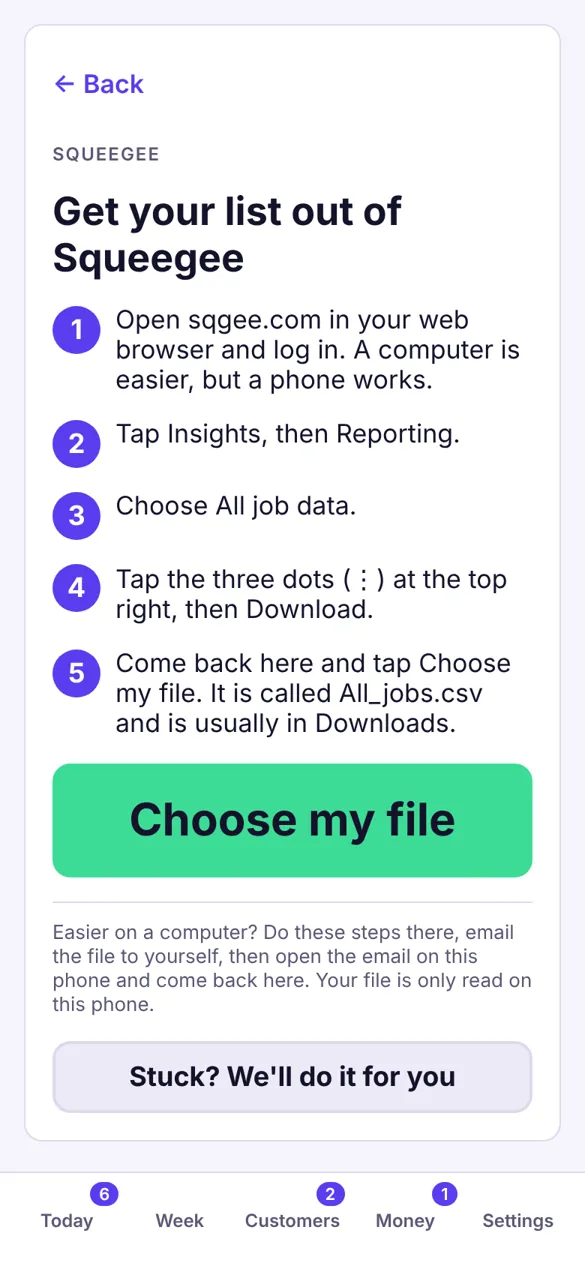
- Open sqgee.com in your web browser and log in. A computer is easiest, but a phone works.
- Go to Insights, then Reporting.
- Choose All job data.
- Click the three dots (⋮) at the top right, then Download. A file called All_jobs.csv downloads.
It has a row for every job, not just every customer. That's fine: RoundTap spots the repeats and keeps one of each customer.
Cleaner Planner
- Log in to Cleaner Planner in your web browser.
- Open the Customers tab.
- Click Export. A file downloads.
If the file has fewer customers than you have, Cleaner Planner's own help says to email their support for a full export.
Aworka
- Log in to Aworka.
- Open the Jobs tab.
- Click Export. A CSV file downloads.
getSoapy
- Log in to getSoapy on a computer.
- Go to your customers list and look for an Export or Download option.
- If you can't find one, ask getSoapy's support for a spreadsheet (CSV) of your customers.
They're your customers and your records: any app should let you take your customer list with you. If you can't find an export, ask their support for it.
RoundPartner
- Log in to RoundPartner.
- Go to your list of customers.
- Look for an Export or Download button and use it.
Can't find it? Ask their support for a CSV of your customers, or use Do it for me below.
A spreadsheet (Excel or Google Sheets)
- Got the file on your phone or computer? Skip to the RoundTap steps below and choose it.
- Or open the spreadsheet, select all your rows, copy them, and paste them into the box on the import screen.
Any layout works, however messy. RoundTap finds the addresses, prices and how often, and you can point it at the right column if it guesses wrong.
A paper round book or diary
- Add them as you go: three boxes per customer (address, price, how often). Do a few each evening, or add each one the next time you clean there.
- Or take photos of the pages (one photo per page, flat, in good light) and send them to us with Do it for me. We'll type them in for you, free.
Any other app
- Log in to your old app. A computer is easiest.
- Look for Export, Download or Backup, usually on the customers page or in settings.
- Pick CSV or Excel if it asks.
2. Bring it into RoundTap
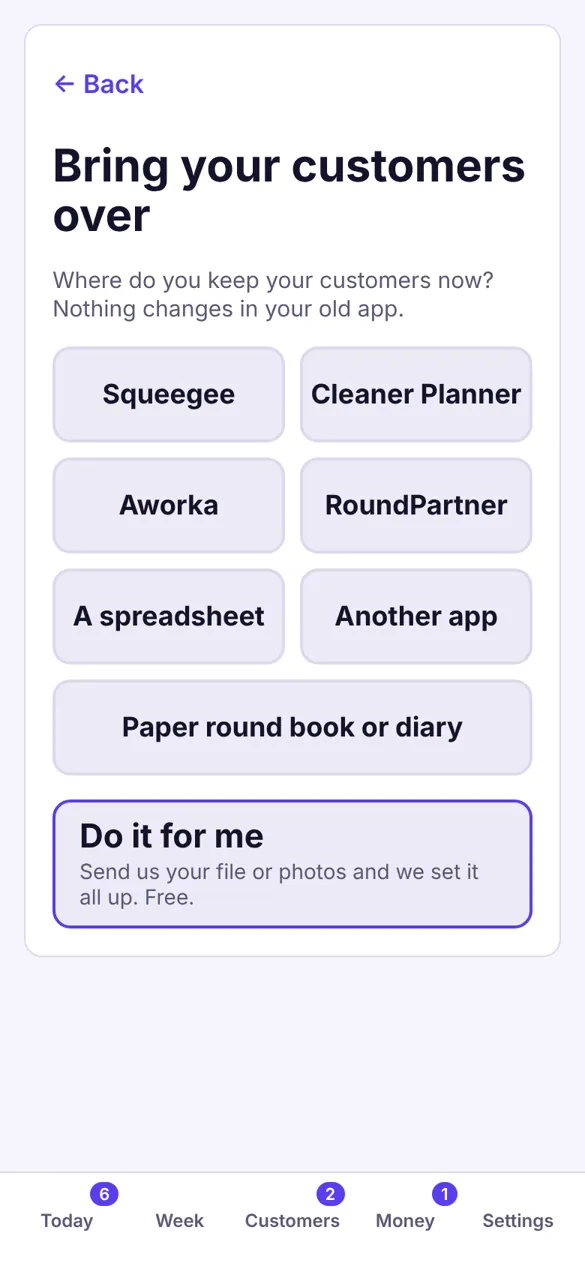
- In RoundTap, go to Settings › Bring your customers over › Import customers.
- Pick where your customers are now. You'll see the steps for that app.
- Tap Choose my file and pick the file you downloaded (usually in Downloads).
- Check what RoundTap found. If a column is wrong, tap Show me the columns and point it at the right one. Only the address really matters.
- Choose how to set the next clean dates: spread out over the next few weeks (neighbours kept on the same day), or all due today so you can sort them as you go.
Changed your mind? Tap Undo import straight after, and everything goes back as it was.
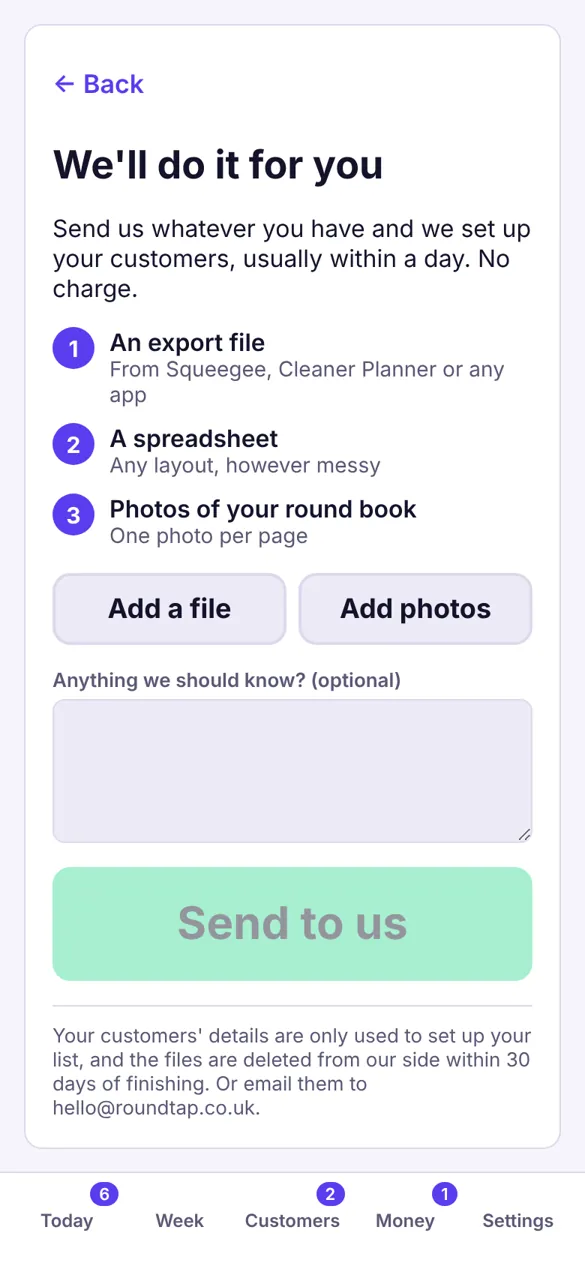
Stuck? We'll do it for you, free
On the import screen tap Do it for me, add your file or photos of your round book, and tap Send to us. Cover up any key safe or alarm codes first. We'll put your customers into your app for you, usually within a day, and email you when they're in. Or email it to [email protected]. Your customers' details are only used to set up your list (we may use Claude AI to help type them up: see our Privacy policy), and we delete the files within 30 days of finishing.
After you've switched
- Check a week or two on the Week screen, and move any days that look too full.
- Tap Stop practice and add my customers if you were practising with the made-up customers (importing removes them for you).
- When you're happy, cancel your old app's subscription.